Template
The template choice type is not meant to be a replacement for Templater plugin or core Templates. It's meant to augment them, to add more possibilities. You can use both QuickAdd format syntax in a Templater template - and both will work.
If you just want to spin up a note from a template in your template folder without maintaining a Template choice per file, use the New note from template command. It lists the templates in your configured folder, prompts for the new note's name, and creates it in Obsidian's default location. When a template folder is configured, the same entry also appears in Run QuickAdd — at the bottom by default, or move it to the top / hide it under Settings → Choice Picker — and it's scriptable via quickadd:run-template. Make a Template choice (below) when you need a fixed location, file-name format, linking, or a hotkey.
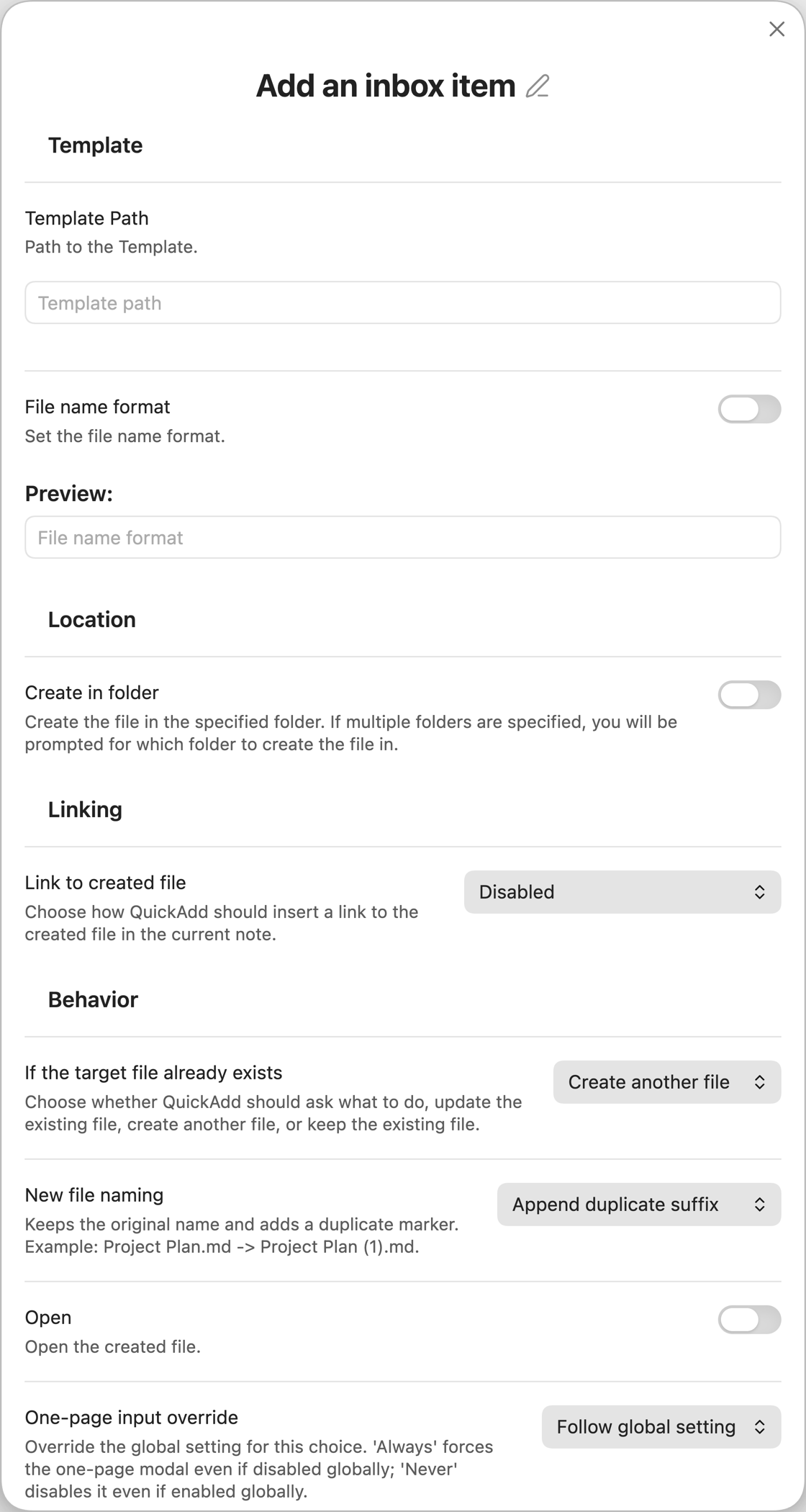
The Template choice builder groups its settings into four sections: Template (template path and file name format), Location (where the file is created), Linking (whether and how to link to the created file), and Behavior (what happens when the file already exists, and how the file is opened).
Mandatory
Template Path. This is a path to the template you wish to insert. Paths are vault-relative; a leading / is ignored.
The Template Path supports QuickAdd format syntax, so the path can be dynamic. For example, Templates/{{VALUE:collectionName}} Template.md prompts for a collection name and resolves to a path like Templates/Games Template.md when the choice runs. Named values ({{VALUE:client}}), dates ({{DATE:YYYY}}), fields, and global variables all work in the path. The same applies to the Capture choice's Create file with template path.
The path is resolved with a path-safe subset of the format syntax: macros, inline JavaScript, and {{TEMPLATE:...}} inclusion are not run while computing a path, and {{title}} cannot be used in a path (the title is derived from the created file, not the source template). Note-relative tokens — {{FOLDER}}, {{FILENAMECURRENT}}, and {{LINKCURRENT}} — are left as-is in a template path, since they describe the note being created rather than the source template ({{FOLDER}} is still available in file names and template bodies). The created file's extension comes from the resolved path, so a token that expands to .canvas/.base produces a canvas/base file.
A few things don't apply to a dynamic template path: the path can't be auto-bundled when exporting a QuickAdd package (it isn't a literal file), and if you use the one-page input form, prompts inside the resolved template's body are gathered when the choice runs rather than in the up-front form.
QuickAdd supports markdown (.md), canvas (.canvas), and base (.base) templates. The created file uses the same extension as the template.
If you want a new markdown note to include a live embedded Base dashboard, see
Template: Create an MOC Note with a Link Dashboard.
Optional
File Name Format. You can specify a format for the file name, which is based on the format syntax.
Basically, this allows you to have dynamic file names. If you wrote £ {{DATE}} {{NAME}}, it would translate to a file name like £ 2021-06-12 Manually-Written-File-Name, where Manually-Written-File-Name is a value you enter when invoking the template.
If you disable File Name Format, QuickAdd uses {{VALUE}} as the file name format. This keeps the default behavior of prompting for a file name when you run the choice, with the same {{VALUE}} / {{NAME}} behavior described in the format syntax docs.
Create in folder. In which folder should the file be created in.
You can specify as many folders as you want. If you don't, it'll just create the file in the root directory. If you specify one folder, it'll automatically create the file in there.
If you specify multiple folders, you'll get a suggester asking which of the folders you wish to create the file in.
Folder paths also support QuickAdd format syntax, including {{VALUE}}, named values such as {{VALUE:client}}, dates, and global variables. For example, Projects/{{VALUE:client}}/{{DATE:YYYY}} prompts for a client and creates the file under that client's folder for the current year.
When Create in folder is enabled, a few sub-toggles appear:
- Choose folder when creating a new note – instead of using the folders configured here, prompt you to pick a destination folder each time the choice runs.
- Include subfolders – when prompted, choose from both the selected folders and their subfolders when creating the note.
- Create in same folder as active file – creates the file in the same folder as the currently active file. Will not create the file if there is no active file.
Link to created file. Choose how QuickAdd should insert a link to the created file in the current note. Pick one of three modes:
- Enabled (requires active file) – throw an error if no note is focused (legacy behavior)
- Enabled (skip if no active file) – insert the link when possible and skip silently otherwise
- Disabled – never append a link
When either enabled mode is selected, Link placement lets you choose where the link is placed:
- Replace selection - Replaces any selected text with the link (default)
- After selection - Preserves selected text and places the link after it
- End of line - Places the link at the end of the current line
- New line - Places the link on a new line below the cursor
Link type. Shown only when Link placement is Replace selection. Choose whether replacing the selection should insert a Link or an Embed.
If the target file already exists. Choose whether QuickAdd should ask what to do, update the existing file, create another file, or keep the existing file.
Open. Will open the created file. When enabled, additional file-opening controls appear (these are shared with the Capture choice):
- File Opening Location – where to open the file: Reuse current tab, New tab, Split pane, New window, Left sidebar, or Right sidebar.
- Split Direction – shown only when the location is Split pane. Arrange the new pane as Split right or Split down.
- View Mode – how to display the opened file: Source, Preview, Live Preview, or Default.
- Focus new pane – shown for every location except Reuse current tab. Focus the opened tab immediately after opening.
File Already Exists Behavior
When a file with the target name already exists, the setting works in two steps:
- If the target file already exists: choose one of these high-level behaviors: Ask every time, Update existing file, Create another file, or Keep existing file
- Update action: shown only when you choose Update existing file
- New file naming: shown only when you choose Create another file
Ask Every Time
QuickAdd prompts you to choose one of these actions each time the target path already exists:
- Append to bottom
- Append to top
- Overwrite file
- Increment trailing number
- Append duplicate suffix
- Do nothing
Update Existing File
These options modify the existing markdown, canvas, or base file:
- Append to bottom: Adds the template content to the end of the existing file
- Append to top: Adds the template content to the beginning of the existing file
- Overwrite file: Replaces the existing file content with the template
Create Another File
These options keep the existing file untouched and create a new file instead:
- Increment trailing number: Changes trailing digits only while preserving zero padding when present. For example,
note009.mdbecomesnote010.md. - Append duplicate suffix: Keeps the full base name and adds
(1),(2), and so on. For example,note.mdbecomesnote (1).md.
Keep Existing File
Selecting Keep existing file applies the same result as choosing Do nothing from the prompt:
- Do nothing: Leaves the existing file unchanged and opens it automatically. This does not require the separate Open setting.